Reading Score Entry in PowerTeacher
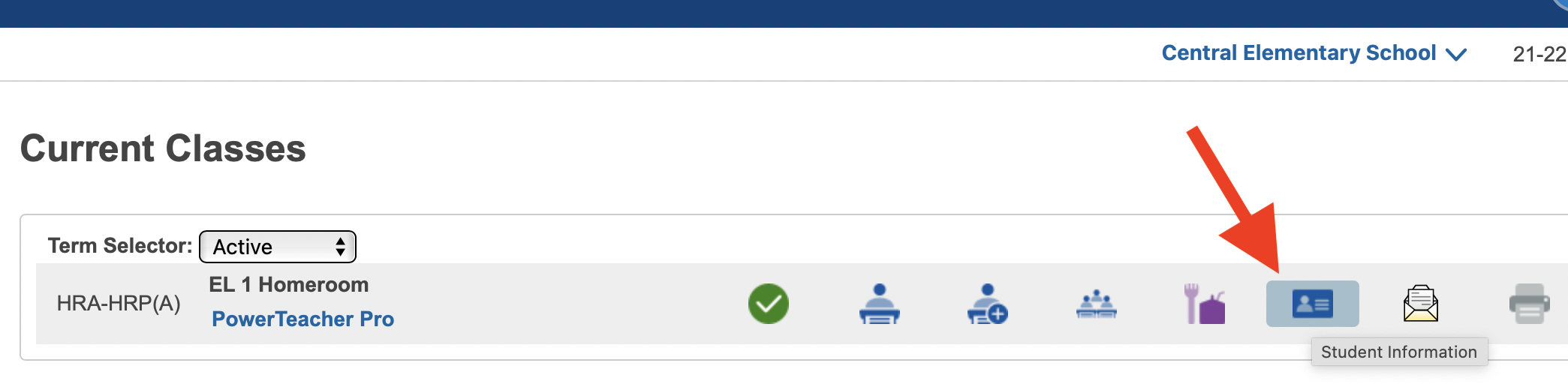
Login to PowerTeacher and click the information/card icon for a class
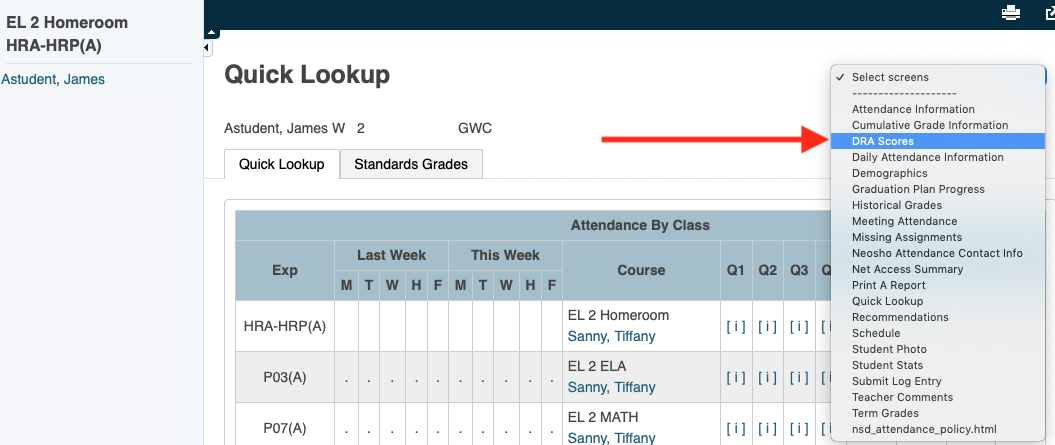
Click a student name from the left side and then select 'Reading Scores' from the dropdown on the right:
Select scores from the dropdown (PP = pre primer) and click submit:
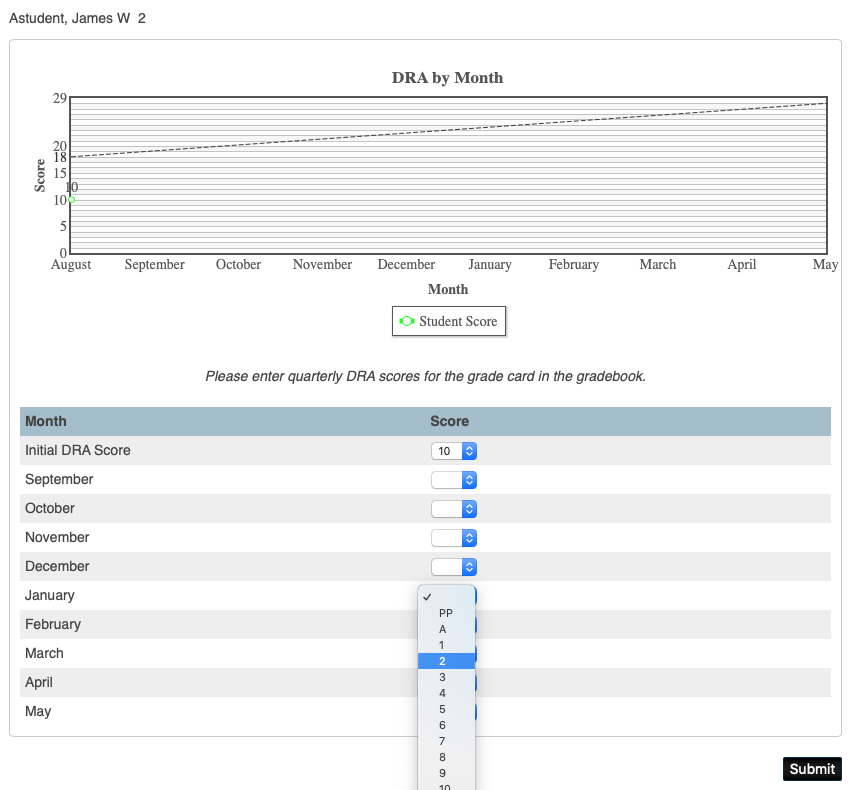
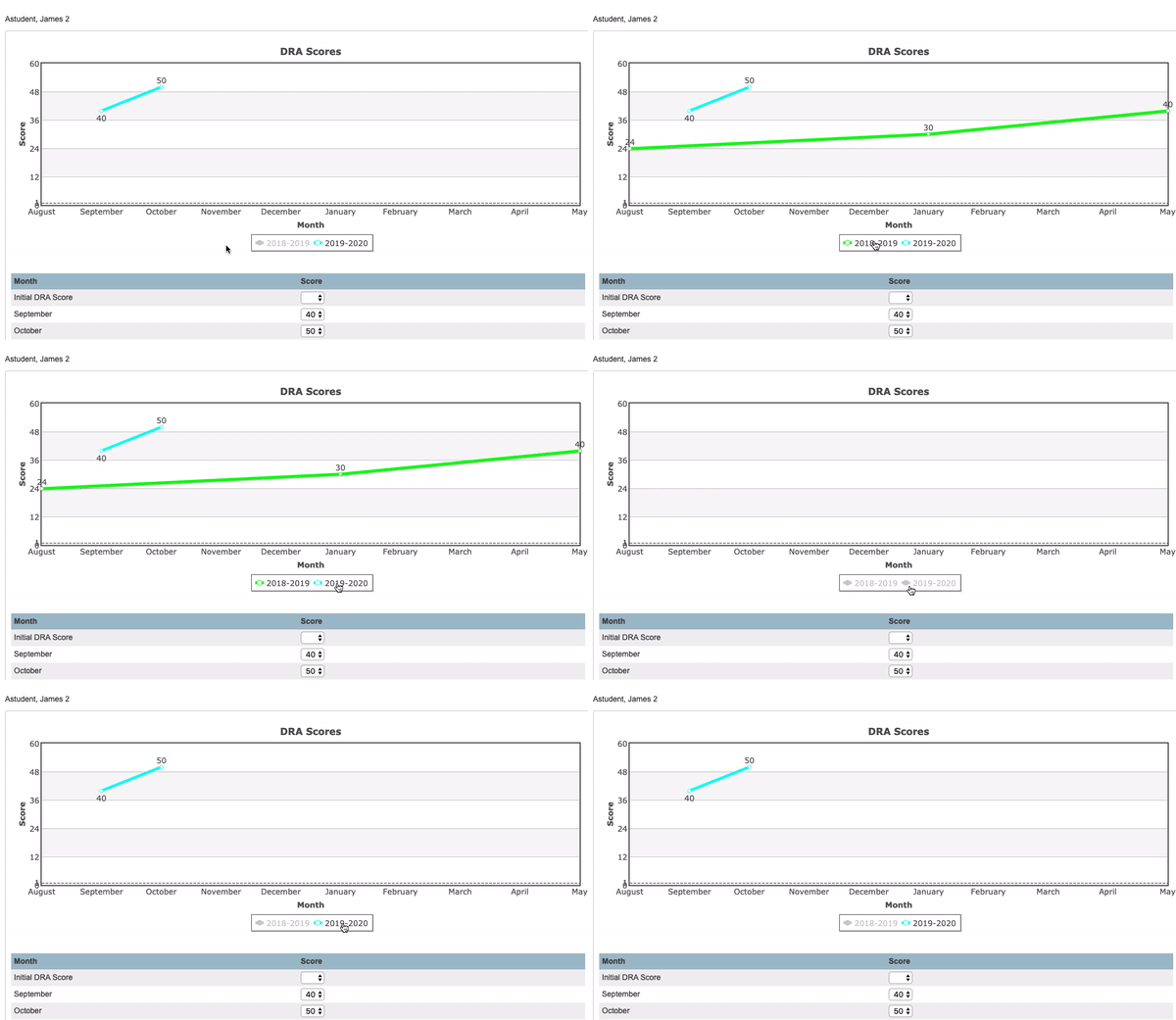
Students will show previous year scores on this screen, if you want to show/hide the data for a certain year(s) you can click the year name:
Tip - To remain on the reading score entry screen for the next student click their FIRST name in the class list
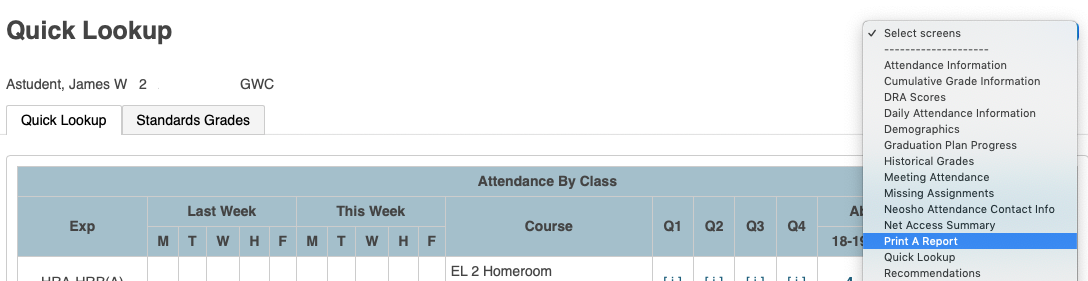
While in the information student pages, to print a Reading Score letter for a single student/month, select 'Print A Report' from the menu:
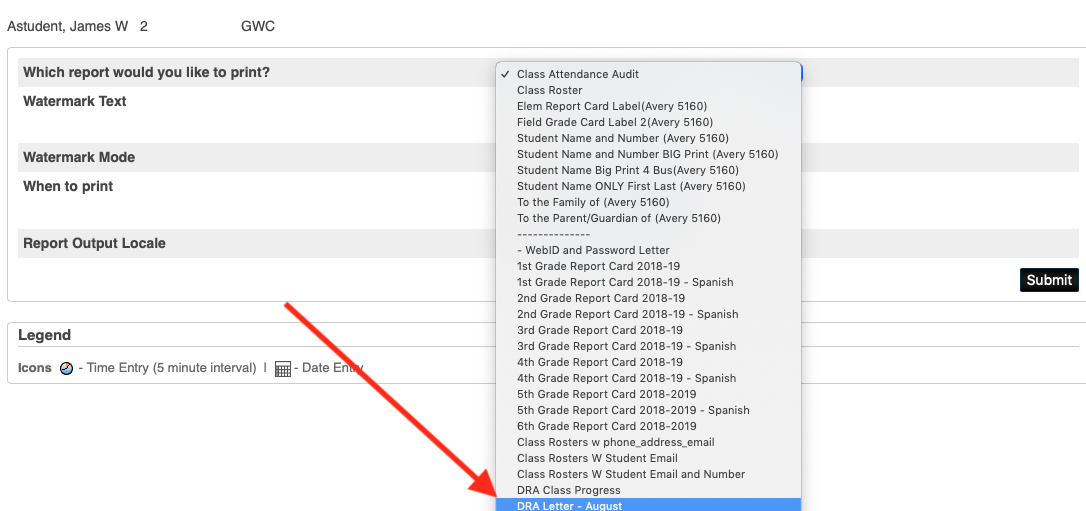
Select the DRA - Letter month and click submit:
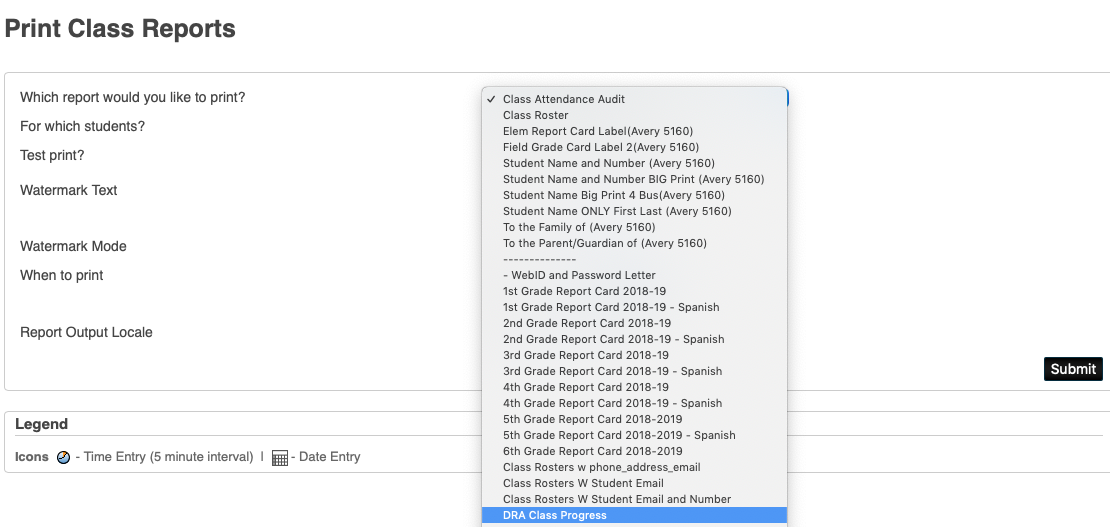
Printing Reading Scores for Class Report
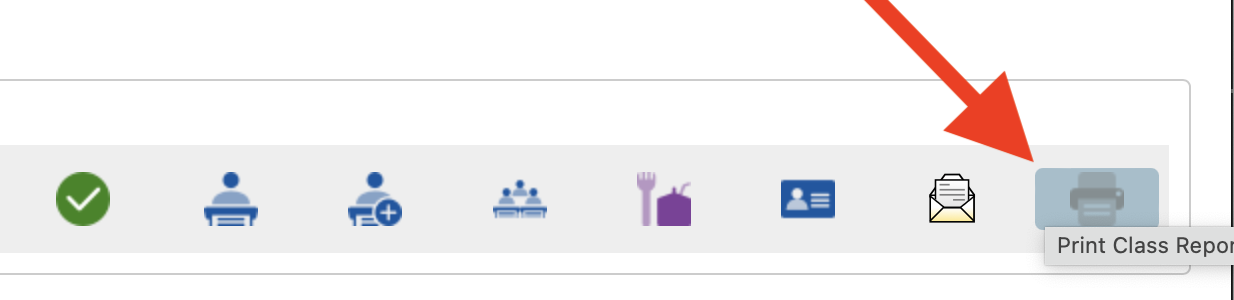
Login to PowerTeacher and click the printer icon for a class
Select the DRA Class Progress report from the dropdown and click Submit