Summer School
Overview
Summer schools are separate 'schools' in PowerSchool, students will remain in their regular home building and have a remote/summer school enrollment into their summer class(es). It's important not to transfer students out of their home school or this will also inactivate their regular school enrollment. If a student stops attending all summer school classes you just need to drop their enrollments in the summer school classes and then edit their summer school line on the Transfer Info page.K-8 students are enrolled in just one homeroom to keep things simple so if a student quits coming to summer school you just need to drop the one class and edit the summer school line on the Transfer Info page.
High School students could be taking multiple classes and could drop just a single class, in this case you just drop the classes. If they are dropping all of their classes then you would also need to edit the summer school line on the Transfer Info page.
Enrolling Summer School Students in a Class
Starting from the students 'regular' home school
2026 Update: You can also work from 'District Office' instead of having to switch between multiple schools.
- Select the student and navigate to 'Courses and Programs' -> 'Remote and Summer School Registration'
- Check the box to 'Show Summer Schools Only' (optional but makes the list shorter)
- Select the summer school from the dropdown and search for the course
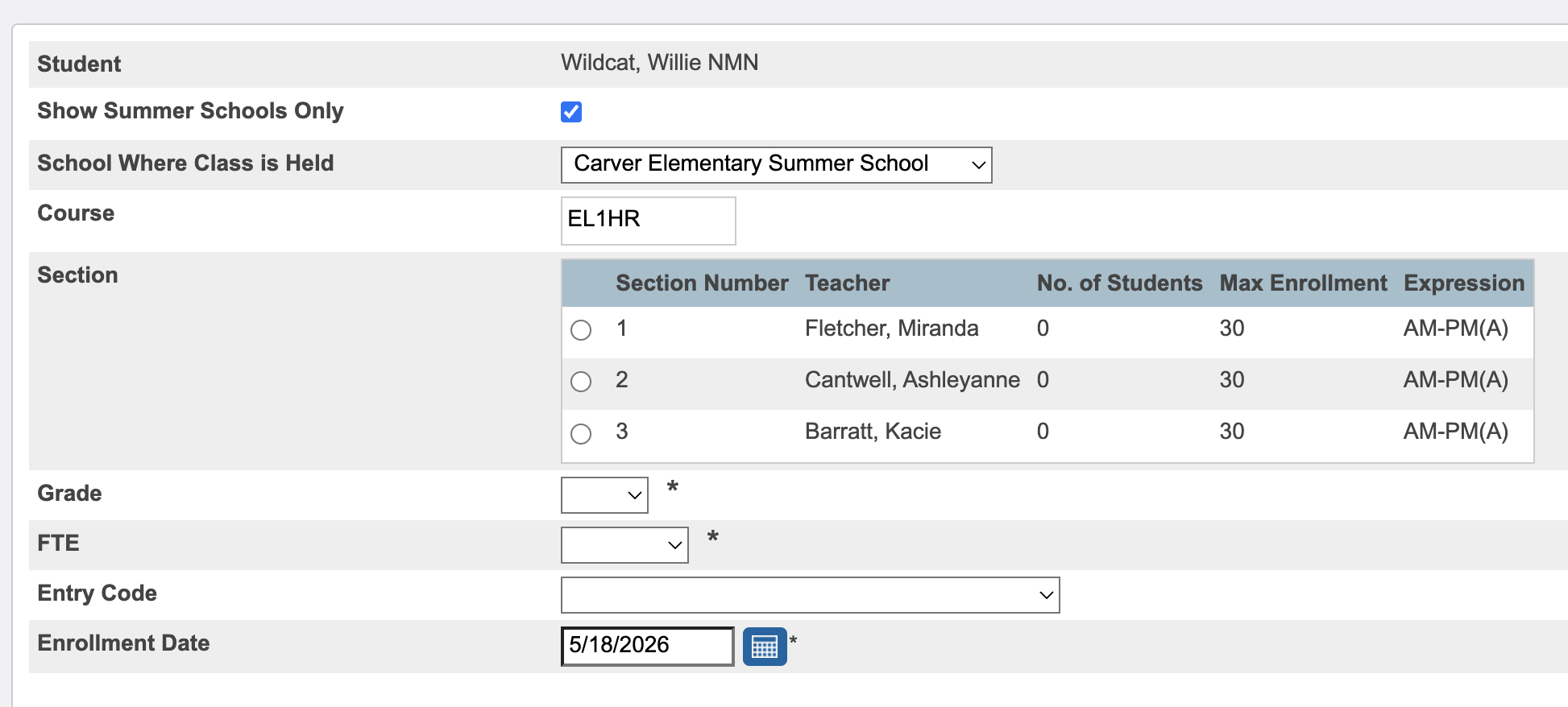
- Check the section to enroll the student in
- Set 'Grade' to be the students grade level for the upcoming school year
- Set the FTE, for K-8 it will be 'Full Day' for HS select the number of classes they are taking for summer school
- Set the Entry Code to R101 Remained Advanced
- Set the enrollment date Important: set the date to the first day of summer school if you're doing this before the first day
- Submit
Elementary Homerooms
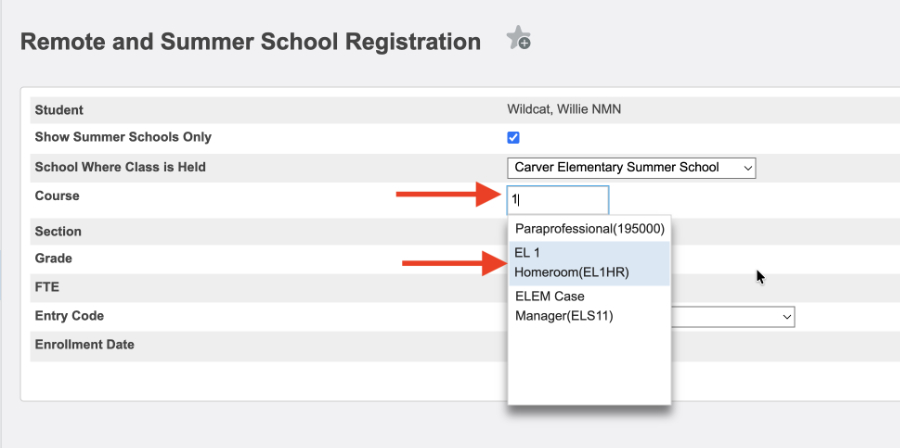
For elementary students, if you type in their grade level (0 for kdg) it should pop up with the option for the homeroom just like regular year (EL1HR - 1st grade, EL2HR - 2nd grade, etc.):
When you pick the course it should come up with the list of sections:
Dropping Summer School Students (K-8)
Important:If a student stops attending/drops a summer school class you will only drop the class and edit the summer school line on the Transfer Info page. Do not use the 'Transfer out of School' function or this will inactivate their entire enrollment including for the 'regular' school year.
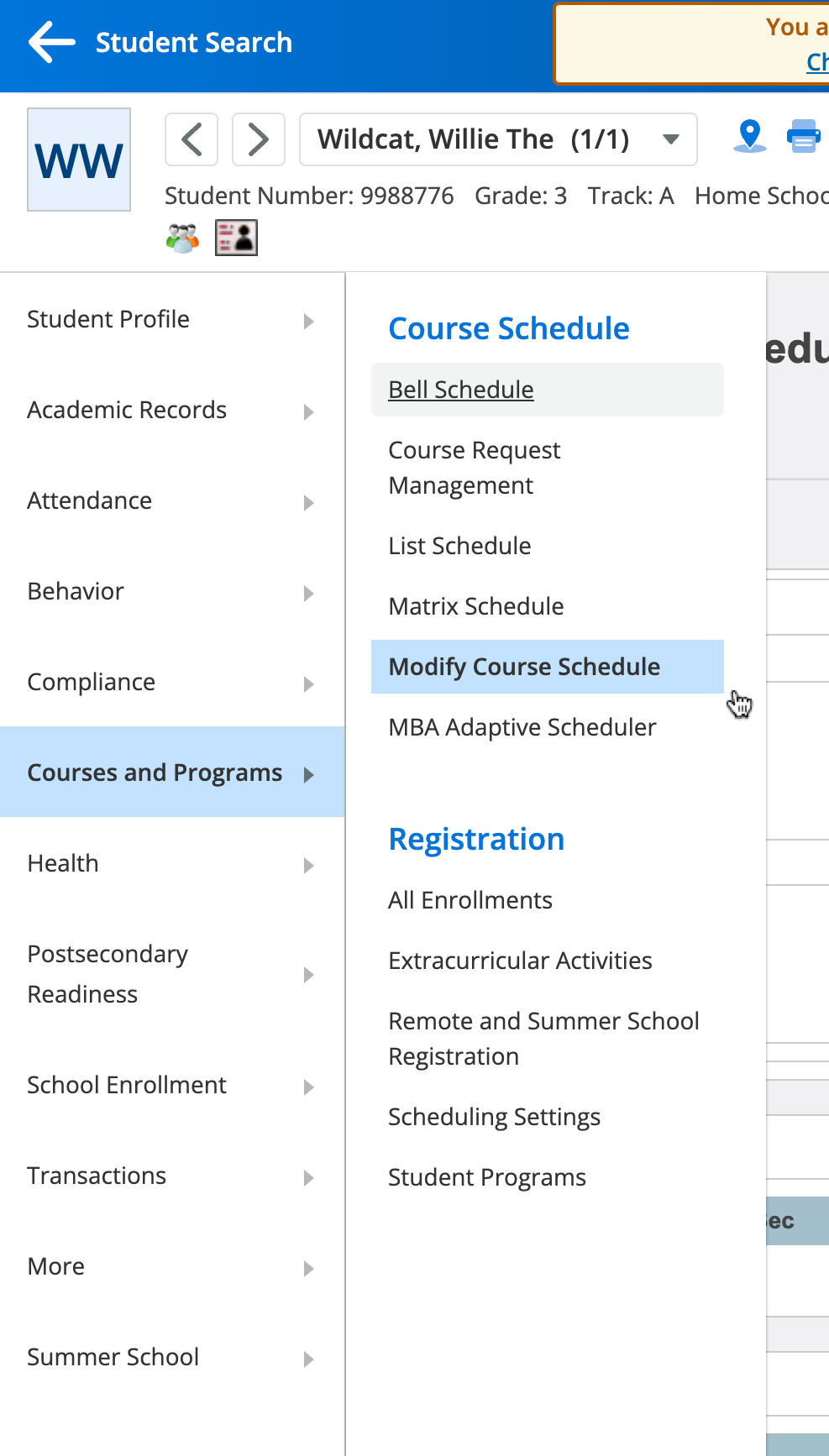
- Select the student and navigate to 'Courses and Programs' -> 'Modify Course Schedule'
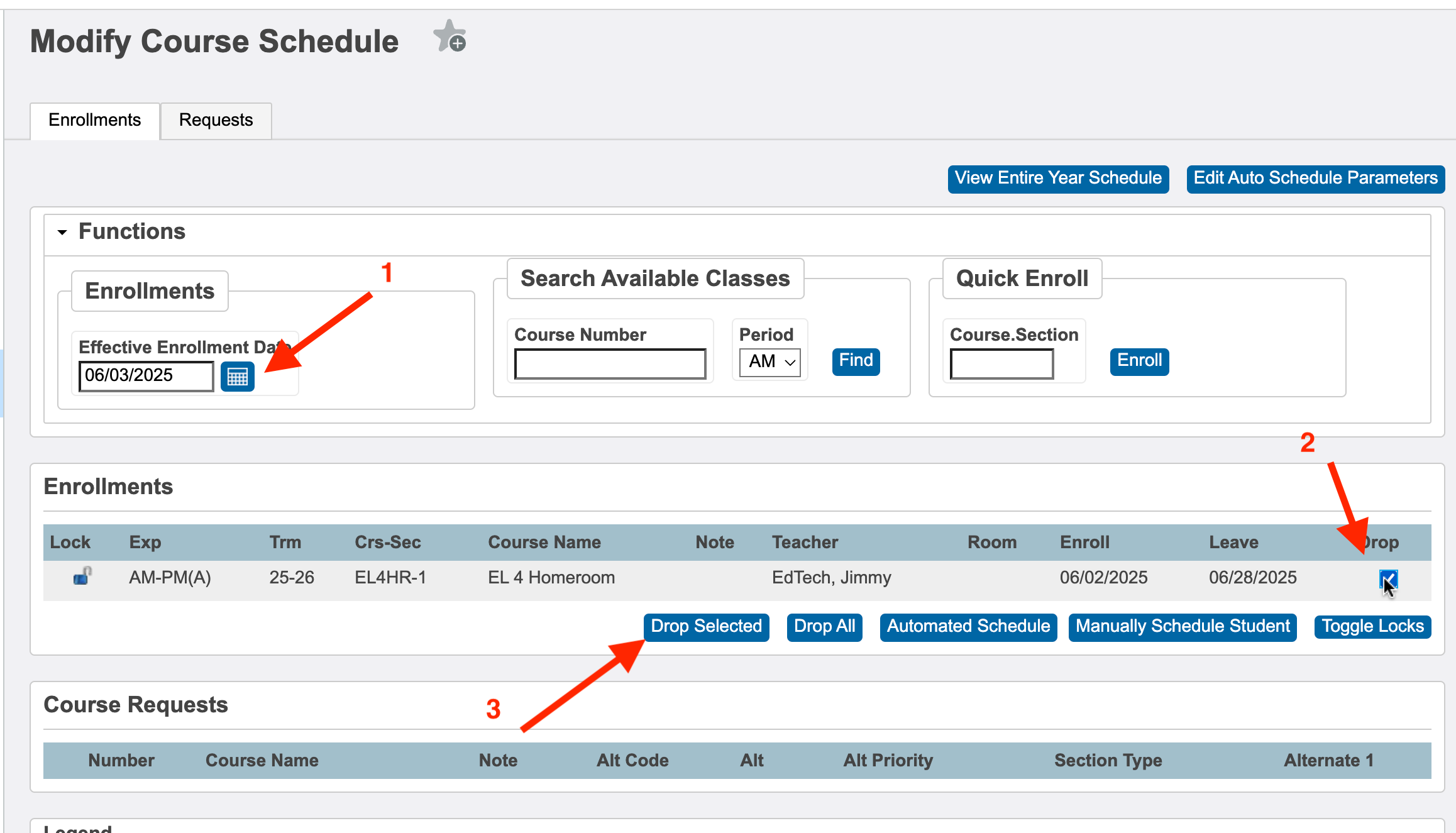
- Enter the drop date (usually the day after their last day of attendance)
- Check the box for 'drop' on the class(es) to drop
- Click 'drop selected'
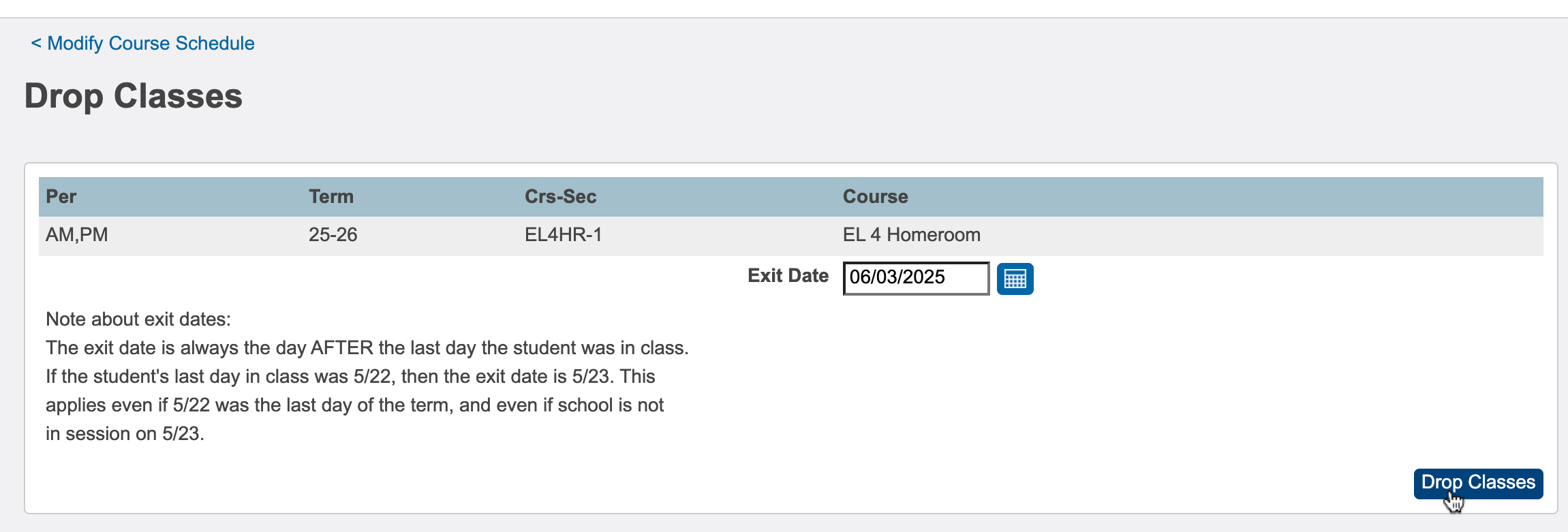
On the next screen, confirm the date is correct and click 'Drop Classes'
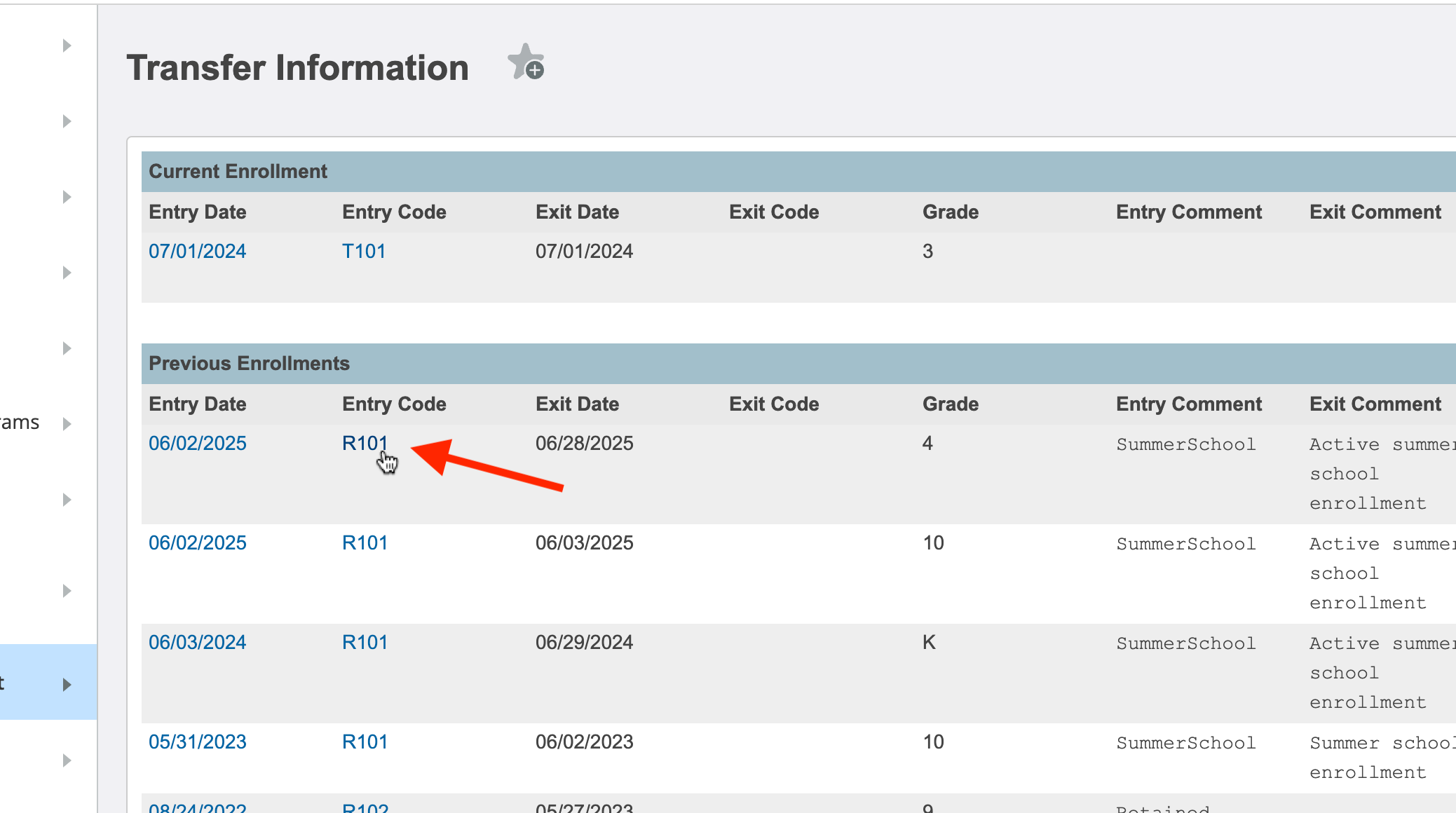
The classes have been dropped now we need to make sure their enrollment info matches. Navigate to 'School Enrollment' -> 'Transfer Info' and click the summer school enrollment line (usually the first line under Previous Enrollments).
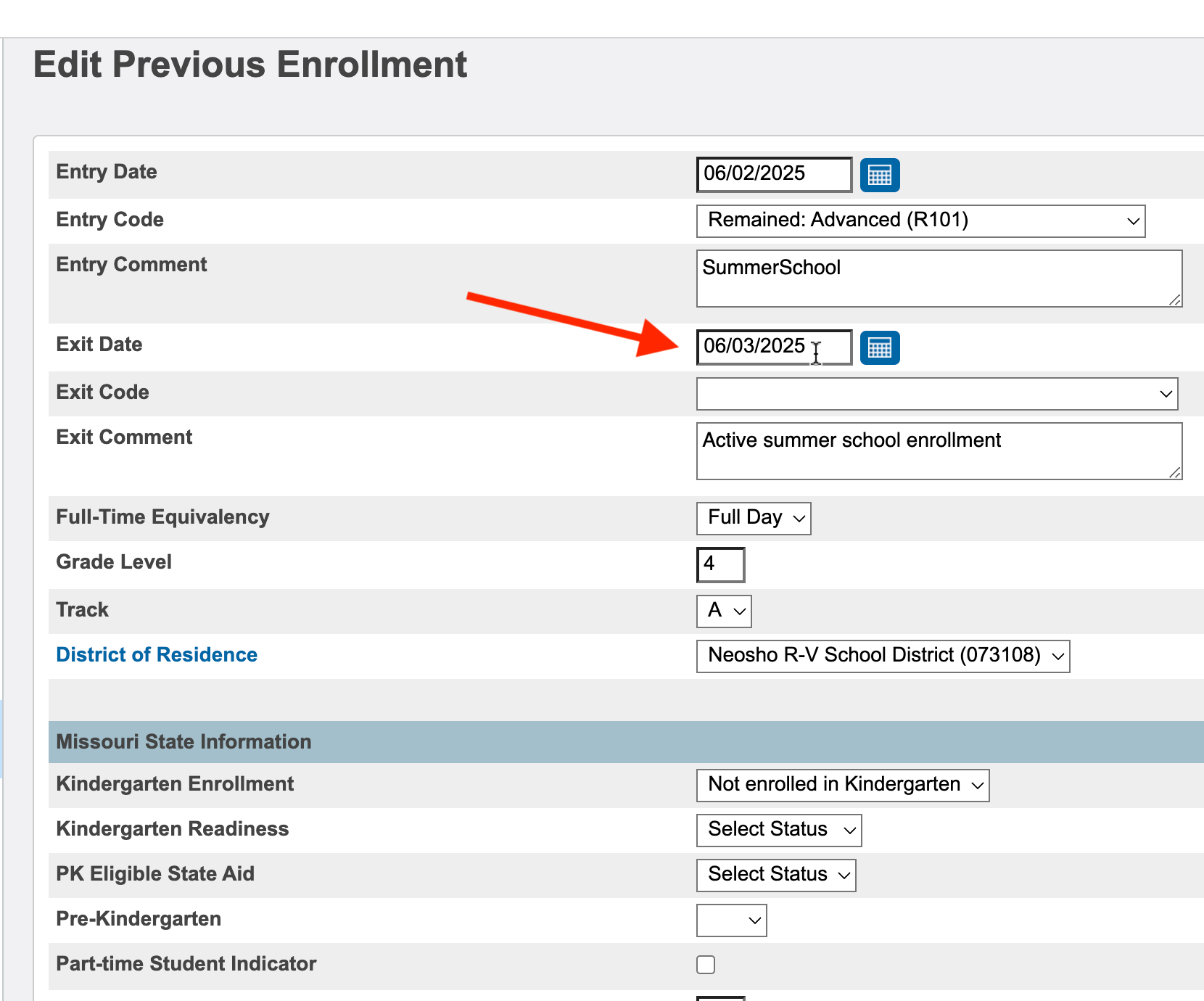
Enter the exit date that matches their drop date from classes and Submit:
Dropping Summer School Students (HS - student dropping just one class)
Important:If a student stops attending/drops a summer school class you will only drop the class and edit the summer school line on the Transfer Info page. Do not use the 'Transfer out of School' function or this will inactivate their entire enrollment including for the 'regular' school year.
- Select the student and navigate to 'Courses and Programs' -> 'Modify Course Schedule'
- Check the box for 'drop' on the class(es) to drop
- Click 'drop selected'
- Enter the drop date (usually the day after their last day of attendance)
If the Student is Dropping all Classes
- Drop all classes using the steps above
- Edit the summer school line on the Transfer Info page to reflect their last day
The video below demonstrates editing the summer school line on the Transfer Info page