Storing Grades
Storing grades is the process of taking what is in the gradebook and snapshotting it. Grades are stored using a 'store code', for semester grades these are 'S1' and 'S2' while progress report grades usually start with a 'P' so 'P1' would be progress report 1 and 'P2' for the next, etc.
Most grade reports are already setup to search for grades stored with 'S' and/or 'P' so if possible it's best to stick with this convention.
It's useful to store grades for grade checks because it makes a record of the grades, if you only run reports from the gradebook as of a certain moment you would probably not get exactly the same result a few hours later.
Usually teachers are notified of the time/date grades will be stored so everyone is up to date.
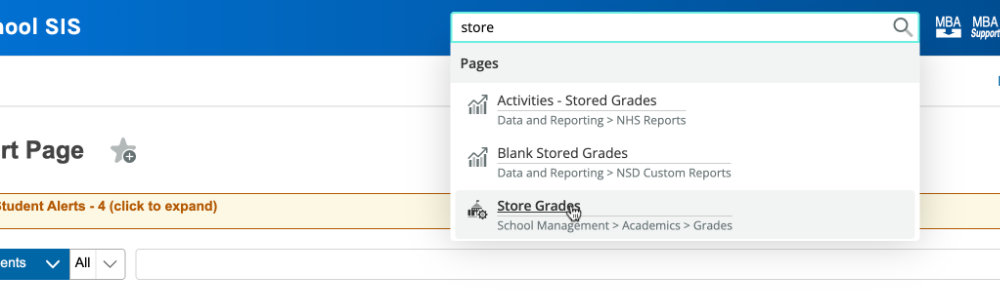
To access the screen to store grades you can go to the search box at the very top and start typing 'store grades' and it will autocomplete and you can click 'Store Grades'
This will bring up the store grades screen, please note the circled areas and see below for details
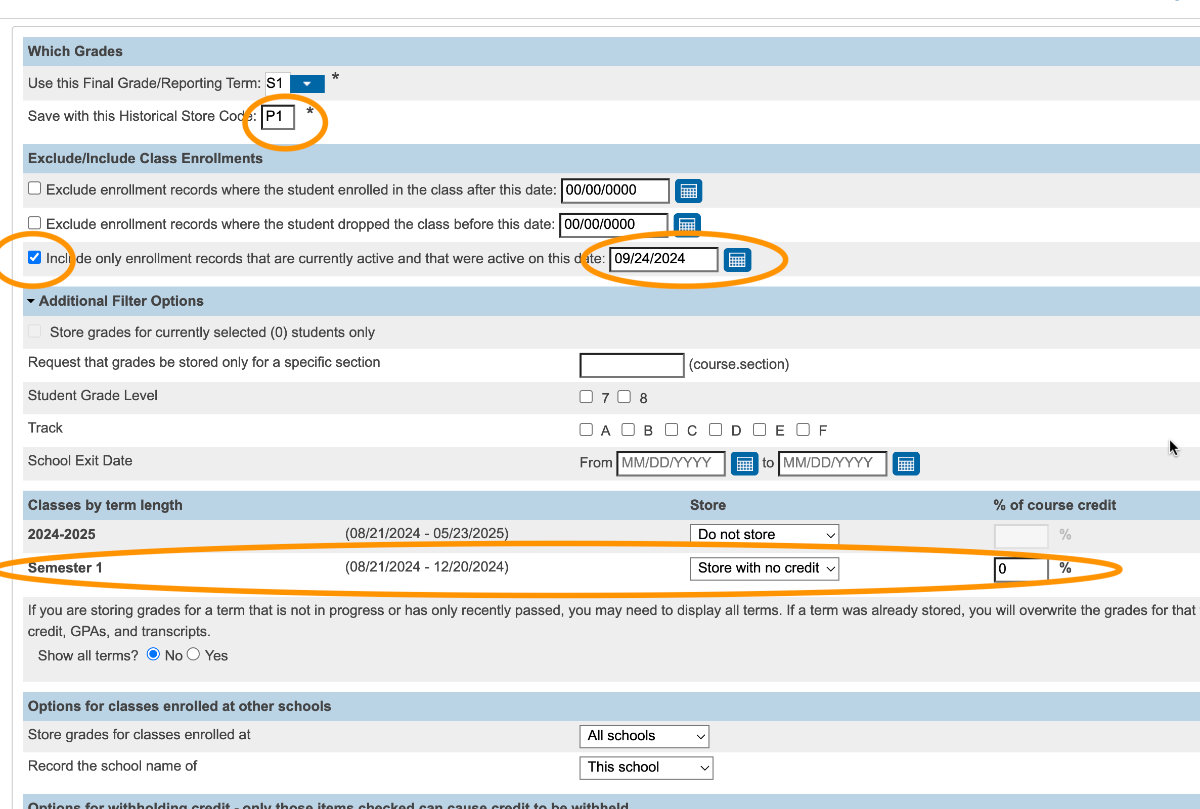 The Store Code is what you want them to be stored as, please don't use anything starting with an 'S' because that code is reserved for end of term/final grades. The usual convention we have is to use 'P' for 'progress', if we stick to that it does keep most of the reports working too because they look for that. In this case it's the first one of the year so it's P1, next would be P2, etc.
It is important to try and stick with the 'P' for store codes - we can fix most anything when that's used but if they're stored with an 'S' and not done with end of term procedures it will destroy historical data that can't be undone.
The checkbox to 'Include only enrollment records that are currently active....as of this date' tells the system to only store grades where students were put in that class on or before this date - this means if a student was just put in the class after this date they won't have a grade stored - we usually back this up a day or two prior to the grade storing date because if a student just started in the class yesterday it might not be reasonable to expect the teacher already has something graded for that student.
On the classes by term length make sure to 'Store with no credit' and that the % of course credit is set to zero.
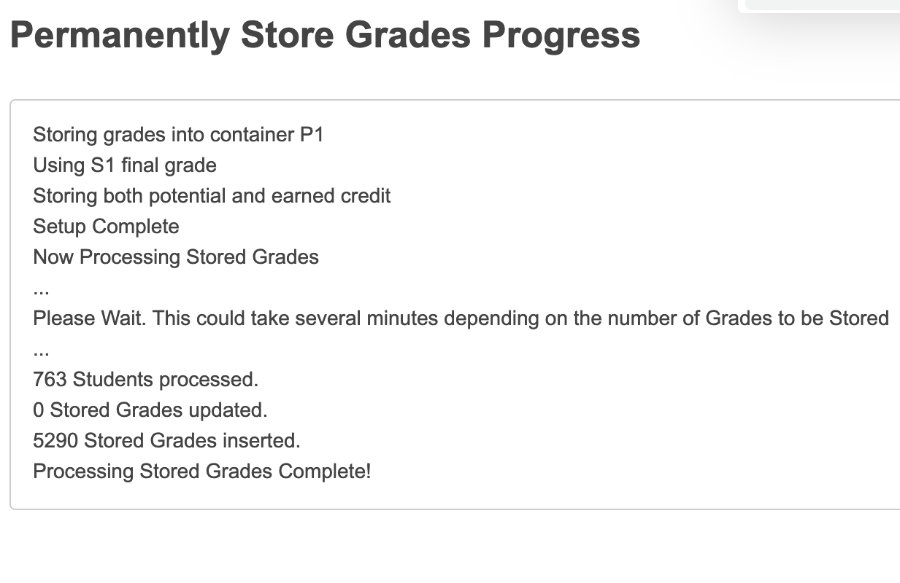
Then you can click Submit, it will take a few minutes to run but when it's complete the page will show you how many grades it stored.
Setting Current Grade Display
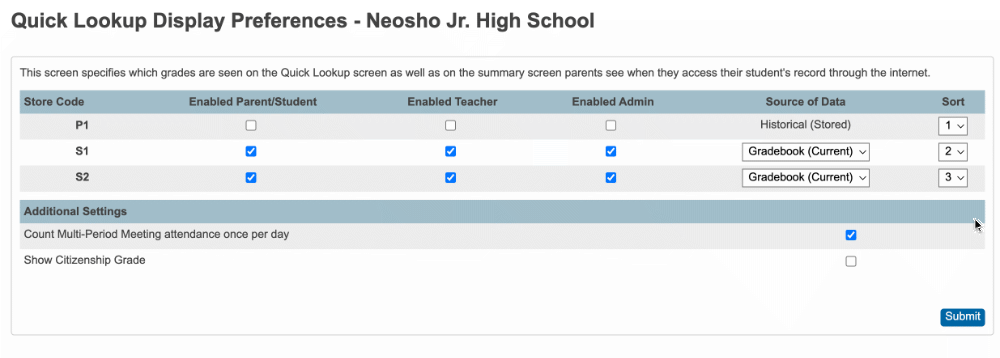
After the grades are stored you can set if you want those to show up for students/teachers/parents by searching for 'Set Current Grade Display'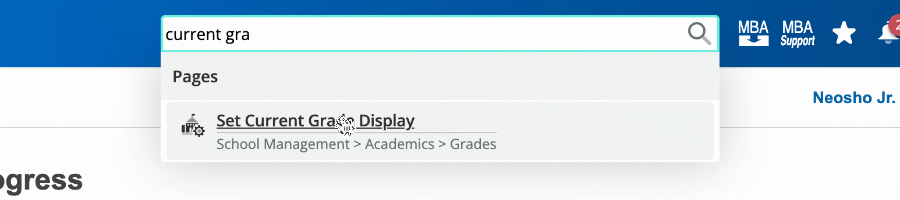
Click 'Quick Lookup Display Preferences'
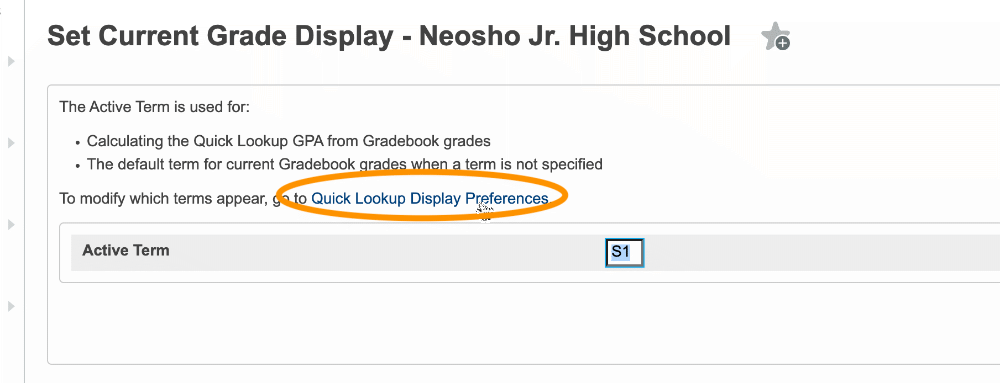
Here you can toggle who it should display for and also set the sort order (left to right, 1 is the leftmost)